Objectives
After this assignment students are expected to acquire the following skills
- Creating TCP sockets to connect to remote hosts
- Configuring a TCP socket as either client socket or server socket
- Implement a rudimentary FTP client that supports downloading and uploading files
- Implement a portion of standard protocol as described in an RFC document
- Reverse engineer a communication program by observing its TCP traffic
Your Assignment
In summary, the goal of this assignment is to replicate a few functionalities provided by a typical FTP client using TCP sockets. Throughout the handout, you will be referred to various section of RFC959
It shall support the following user commands:
open xxx.yyy.zzz: Connect to a remote FTP server and necessary user authenticationdirorls: Show list of remote filescd: Change current directory on the remote hostget xxxxxDownload filexxxxxfrom the remote hostput yyyyyUpload fileyyyyyto the remote hostcloseterminate the current FTP session, but keep your program runningquitterminate both the current FTP session and your program.
TIP
Use your Windows/OSX/Linux FTP program to see how these commands work.
Your program shall be designed to run in a loop that takes one of the six user commands above.
Upon successful operation of the
opencommand, your FTP client shall prompt the user to enter their userid which will be sent to the remote FTP server using theUSERcommand, in which case the server may respond with the following numeric code:Status Description Follow up 220 Service ready None 331 Username okay, need password Prompt for password 332 Need account for login Print a message 421, 500, 501, 530 Various error cases Print a message When password is required (331), your FTP client shall prompt the user and then use the
PASScommand to send the password (in plain text) and check for success/failure of thePASScommand. Refer to the status code on Page 50 of RFC959 for details.Handle both single-line and multi-line FTP response messages
Translate the above users commands into those understood by FTP servers:
User command Server Command dirorlsLISTcdCWDgetRETRputSTORcloseorquitQUITHandle file/data transfer commands with secondary response messages:
LIST,STOR,RETRError handling on any of the above actions based on the numeric error code in the response message from the remote FTP server. Section 5.4 (Sequencing of Commands and Replies) of RFC959 describes all the possible numeric status/error code for each of the above command.
Your implementation will be evaluated how well each command is handled (in both error-free use cases and erroneous use cases)
Important
Since the objective is to develop an FTP client using TCP sockets, any use of third party FTP library is not acceptable. In general, any libraries that hide the low-level socket operations will not be accepted.
Reference for Implementation
As a standard, the File Transfer Protocol (FTP) has been revised and updated over the years. One of the early standards that contributes to what we use today is RFC171: The Data Transfer Protocol published in 1971. The basic principles of FTP used today was described in RFC959 published in 1985 and this will be the reference for this assignment.
A typical FTP server accepts the following service requests:
| Command | Description |
|---|---|
| USER/PASS | Authenticate yourself to the remote server |
| RETR | Download a copy of the file, specified in the path name |
| STOR | Upload a copy of the file, specified in the path name |
| DELE | Delete a file at the server side |
| CWD | Change Working Directory |
| LIST | Show a directory listing on the server side |
| NLST | Show a directory listing on the server side (name only) |
| TYPE A | Set data type to ASCII |
| TYPE I | Set data type to binary |
| QUIT | Terminate connection with the remote server |
Section 5.3.1 of RFC959 shows the complete list of all the FTP commands.
These are the commands which must be sent to and can be understood by an FTP server. However, for ease of use an FTP client may accept alternative words. For instance, an FTP client designed for Spanish-speaking users may accept the following input to delete the image apple.jpg:
borrar apple.jpg. # delete a filebut behind the scene, it must send the command DELE apple.jpg to the remote FTP server. This will be one of the task of the "protocol interpreter" (User-PI) in the diagram.
Wireshark: Monitor FTP Traffic
In order to appreciate the details provided in RFC959, this handout will first guide you to watch the FTP protocol in action by observing the (TCP) traffic on a computer running an FTP client program.
Use
nslookupto identify the IP4 address of the FTP server you picked.Start Wireshark
- Begin a live capture on your local interface
- Apply the filter
ip.addr == a.b.c.d(replace a.b.c.d with the actual IP4 address of your choice of FTP server), so your Wireshark will show only network traffic between your laptop/desktop with the remote FTP server.
Open a console on your computer. Use
- PowerShell on Windows (use of "Command Prompt" is discouraged)
- Terminal on macOS
Typical Windows/Mac computer should have an FTP client program installed. Start it by typing
ftpfrom the command line. When prompted for user/password, use the suggested one from the list above. Close the FTP session by typingcloseorquitat the command prompt.A sample session to
test.rebex.netis shown below:shftp> open test.rebex.net Connected to test.rebex.net. 220-Welcome to test.rebex.net! See https://test.rebex.net/ for more information and terms of use. 220 If you don't have an account, log in as 'anonymous' or 'ftp'. 200 Enabled UTF-8 encoding. User (test.rebex.net:(none)): demo 331 Anonymous login OK, send your complete email address as your password. Password: 230 User 'demo' logged in. ftp> close 221 Closing session. ftp>In Wireshark, you should see both TCP and FTP (and later FTP-DATA)
- Wireshark labels each FTP content as either "Response:" or "Request:". Digging deeper into the TCP layer of each FTP content you will find that
- All the "Request:" messages are sent to server side port 21
- All the "Response:" messages are received from server side port 21
- Each "Request" begins with FTP commands such as
OPTS,USER,PASS,QUIT, etc. - Each "Response" begins with 3-digit numeric code 220, 200, 230, 331, 530, 550, and so on.
- Wireshark labels each FTP content as either "Response:" or "Request:". Digging deeper into the TCP layer of each FTP content you will find that
A sample of Wireshark capture:
Multiline Responses
Most of the responses from the server shown in the above session are single line text messages. Where each line is terminated with the <CR>, <LF> pair, i.e. "Carriage Return" and "Line Feed" characters (0x0D 0x0A in Hexadecimal). However, an FTP server may deliver these messages as multiple lines. When it does:
- The first line of the response includes the "-" suffix after the 3-digit numeric code
- The last line of the response includes the same 3-digit numeric code without the "-" suffix.
The "Welcome to test.rebex.net" message above is such a multiline message example.
220-Welcome to test.rebex.net!
   See https://test.rebex.net/ for more information and terms of use.
220 If you don't have an account, log in as 'anonymous' or 'ftp'.```TIP
To identify the last line of a multiline message in your code, be sure to check the first four characters "xyz " (including the space) instead of checking only the first three characters "xyz". Some server may repeat the 4-character prefix in all the message (except the last). Checking four characters (including the space) avoids false positives.
999-This is the first line of a multiline message
999-another line
999-yet another line
999 finally the last lineImportant
You must modify the starter code, so it correctly handles parsing of multiline response messages. If necessary, refer to Section 4.2 FTP Replies of RFC959.
Preliminary & Secondary Responses
Some commands have both preliminary and secondary responses. Section 4.2 of RFC959 explains this concept in more depth. Section 5.4 of RFC959 explain this in more details. The following table is summarized from Page 37 of RFC959.
| Group | Description |
|---|---|
| 1xy | Positive preliminary reply (expect another reply) |
| 2xy | Positive completion reply |
| 3xy | Positive intermediate reply |
| 4xy | Transient negative completion reply |
| 5xy | Permanent negative completion reply |
The three commands used in your FTP client which are affected by this convention are: RETR, STOR, NLST, and LIST. The following table is summarized from page 51 of RFC959.
For each of these commands:
- The preliminary response status is either 125 or 150
- The secondary response status is either 226 or 250
Be sure to design your program to handle these cases.
Working With Files
By default, FTP clients/servers begin their session assuming that files are plain text. However, this mode does not work for transferring binary files (images, PDF, compressed files, etc.). To download/upload binary files, the session data type should be first changed to "image" (terminology used in the RFC), by sending the command TYPE I to the server. Fortunately, TYPE I works well for transferring both text files and binary files. So, in general:
- Use
TYPE Ibefore usingSTORandRETRand perform data transfer as binary - Use
TYPE Abefore usingLISTandNLST
Use the following snippet to open a file for reading or writing; it is better to open the file as binary, so it works as well for uploading/downloading PDF, images, compressed files, etc.
fr = open("somefile", "rb")  # Open for reading as a binary file
fw = open("somefile", "wb") # Open for writing as a binary filethen use either read or write on the respective file:
buff_r = fr.read(1024)     # read 1024 bytes from file into buff_r
fw.write(buff_w) # write from buff_w to fileRemember to close the file after all the operations complete:
fr.close()
fw.close()WARNING
If you have a VPN client installed on your desktop/laptop, disable it while testing your FTP program. It may interfere with the packets between your program and the remote FTP server.
Starter Code (Python)
Despite the size of the starter code below, it highlight several important mini tasks needed to write your FTP client:
- How to create a TCP socket and connect to a remote port (21 in the example)
- How to obtain the IP address and port number of a socket in your program
- How to send text-based command via the socket
- How to read incoming response and save it to a buffer
from socket import socket, AF_INET, SOCK_STREAM
FTP_SERVER = "ftp.cs.brown.edu"

buffer = bytearray(512)

def ftp_command(s, cmd):
  print(f"Sending command {cmd}")
  buff = bytearray(512)
  s.sendall((cmd + "\r\n").encode())
  # TODO: Fix this part to parse multiline responses
  nbytes = s.recv_into(buff)
  print(f"{nbytes} bytes: {buff.decode()}")

command_sock = socket(AF_INET, SOCK_STREAM)
command_sock.connect((FTP_SERVER, 21))
my_ip, my_port = command_sock.getsockname()
len = command_sock.recv_into(buffer)
print(f"Server response {len} bytes: {buffer.decode()}")

ftp_command(command_sock, "USER anonymous")
ftp_command(command_sock, "QUIT")TIP
The function
ftp_commandabove is designed to send one FTP command to the remote server and read the associated response message. There is a potential bug in the current design, the message is read into a buffer of size 512 bytes. If the response is longer than 512 bytes, the started code fails to read the remaining bytes. To fix the issue, you have to put therecv_intocall inside a loop and use thelen(the number of bytes read from the socket) in the termination condition of the loop.If the total bytes in the response is 2000 bytes, the first three calls read 512 bytes each, but the fourth call
recv_intoreads only 464 bytes.Since FTP response messages always begin with 3-digit numeric code, it is strongly recommended that you modify the function
ftp_commandto return an integer value of the numeric code parsed from the response message. This will allow your code to perform alternative actions when certain numeric code is returned:pythonif (ftp_command("USER anonymous") >= 300: print("Can't use that user name") else: # Userid is accepted?
FTP Model
What you just observed so far exposes only 50% of the entire FTP model. Your interactions with the remote FTP server above (exchanging requests/responses), took place only on the "control connection"; the green boxes in the diagram below. When no files are being uploaded/downloaded, this connection is sufficient.
Section 2.3 RFC959 explains the FTP model in more depth. A simplified diagram is provided below:
PI = Protocol Interpreter, DTP = Data Transfer Program.
FTP Control Connection
The traffic captured in your Wireshark session above involves only the following components:
- User Interface (the text prompt of the built-in FTP client)
- User Protocol Interpreter (User-PI), part of the FTP client which delivers the requests and receives the associated responses from the Server-PI.
- Server-PI: the remote protocol interpreter
On this connection:
- The FTP client opens a TCP socket and
connect()to the remote FTP server - The FTP server listens to TCP connection request on its port 21
FTP Data Connection
The data connection (shown on the lower 1/3 of Figure 1 or the yellow boxes above) is used when the FTP client exchanges files with the remote FTP server. In the above illustration, the User-DTP is listening on port 12345; in your actual implementation this port can be any number between 1024 and 65535.
Full implementation of the FTP model above requires two separate sockets:
- one for the command connection, and
- one for the data connection.
The starter code provided below, defines only one socket. It handles only the commands/requests and replies/responses. To complete this assignment, you have to create a second TCP socket, dedicated for file data transfer (between the two DTPs shown above)
Section 3.3 of RFC959 specifies that the data connection negotiation can be initiated by the User-PI in two different ways:
- Using the
PORTcommand when the User-PI declares its data port to the server. - Using the
PASVcommand when the User-PI asks the server to identify its data port.
TIP
It is strongly recommended that you use the PORT command. In the code snippet below, the User-PI intents to use port 12345 as its data port. Hence, it has to send the following command to the remote server:
PORT a,b,c,d,48,57where "a.b.c.d" is the IP address of your host and 12345 = 48 x 256 + 57
Use the following snippet to create a new socket which listens to incoming connection on port 12345. IP address 0.0.0.0 enables the socket to receive connections from anywhere.
# Use the "receptionist" to accept incoming connections
data_receptioninst = socket(AF_INET, SOCK_STREAM)
data_receptionist.bind(("0.0.0.0", 12345))
data_receptionist.listen(1)         # max number of pending request

# Use the "data_socket" to perform the actual byte transfer
data_socket = data_receptionist.accept()TIP
Throughout its lifetime, your FTP program uses:
- Only one socket for the command/control connection (between the two PIs)
- N sockets for the data connections (one for each command that requires data connection). These sockets will be used between the two DTPs, and should be closed when the data transfer completes.
- The
encode()anddecode()function calls in the starter code convert the raw bytes to human-readable ASCII strings. On the data connection, you are not required to convert these bytes. - The Python socket library private many other functions than those used in the starter code.
Wireshark: Monitor FTP Data Connection
Go back to your FTP client program (on your desktop/laptop), login, and get the list of remote files (using the ls command). Lines 15-16 in the following sample output show that the remote server has the following contents:
puba (sub)directoryreadme.txt
ftp> open test.rebex.net
Connected to test.rebex.net.
220-Welcome to test.rebex.net!
    See https://test.rebex.net/ for more information and terms of use.
220 If you don't have an account, log in as 'anonymous' or 'ftp'.
200 Enabled UTF-8 encoding.
User (test.rebex.net:(none)): demo
331 Anonymous login OK, send your complete email address as your password.
Password:

230 User 'demo' logged in.
ftp> ls
200 PORT OK.
125 Data connection already open; starting 'BINARY' transfer.
pub
readme.txt
226 Transfer complete.
ftp: 20 bytes received in 0.00Seconds 20.0 Kbytes/sec.
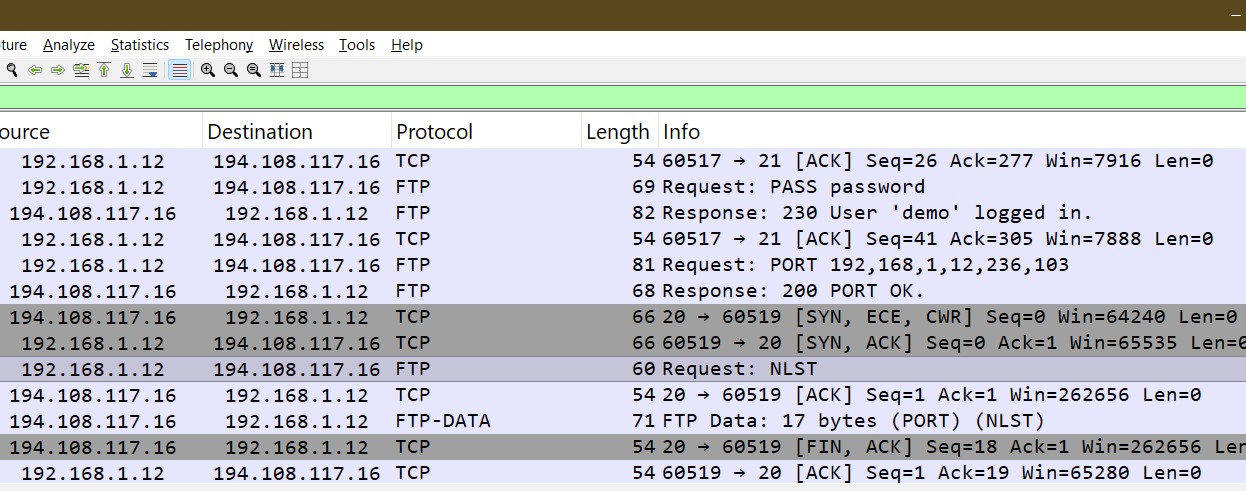
ftp>Associated with the above interaction with the remote FTP server, your Wireshark live capture should show the following Request/Response similar to the screenshot below:
Some details you should observe from the capture above:
The FTP client in at IP address 192.168.1.12
The FTP server is at IP address 194.108.117.16
Packets from the TCP/FTP protocol
- The client socket on port 60517
- The server socket on port 21
- (FTP) Request:
PORT 192,168,1,12,236,103. The first four numbers are the IP address of the client, the last two will be explained below - (FTP) Response:
200 PORT OK - (FTP) Request:
NLST - (FTP) Response:
125 Data connection ....
TIP
Notice that the
lscommand you typed at the FTP prompt triggers thePORTandNLSTrequests.Packets from the TCP/FTP-DATA protocol:
The client socket on port 60519, the server socket on port 20. These numbers can be observed from the 3-way TCP handshake between the
PORTandNLSTcommands.TIP
The 3-way handshake is an obvious hint that the two programs are involved in the
listen()-connect()-accept()TCP connection setup phase.(FTP-DATA):
17 bytes (PORT) (NLST). These 17 bytes come from:Data Length pub3 bytes CR,LF after "pub" 2 bytes readme.txt10 bytes CR,LF after ".txt" 2 bytes
PORT encoding: _,_,_,_,236,103?
The first four numbers after the PORT command encodes the client IP address. How about the last two numbers? If you do the math on the last two numbers, you can verify that 60519 = 236 x 256 + 103. Apparently, the PORT command informs the server which port used by the FTP client to accept for incoming connections for data transfer. The client is free to use any random port number (1024–65535)
TIP
To compute these two numbers from the (random) port number, you can use the following arithmetic:
hi = port // 256    # Use integer division
lo = port % 256If you attempt to do another ls command again, you will observe that the client will create a new socket (and a new port number) for the (new) data connection, triggering another PORT command sent to the remote FTP server.
Using Multi Threads
Handling two communication traffic from two different connections in a single function is challenging. Reading data from a socket, is generally a blocking operation. When there is no data available to read from one socket, an attempt to read that socket will cause your function to get blocked, preventing your program from reading data from the other socket. To solve this problem, it would be easier to dedicate one function to handle only one (socket) connection and let each function execute in its own thread.
Suppose you have two functions invoked sequentially:
my_first_work("NVDA", 20.5)
my_second_work(True, 30, my_account)
print("Both work done")To run them concurrently using multiple threads:
# Import the necessary module
from threading import Thread

# Replace the above sequential calls with
one = Thread(target=my_first_work, args=("NVDA", 20.5,))
one.start()
two = Thread(target=my_second_work, args=(True, 30, my_account,))
two.start()

one.join()
two.join()
print("Both work done")Grading Rubrics
| Feature | Point |
|---|---|
| Command socket setup | 2 |
| Connect to remote FTP server | 2 |
| User authentication | 3 |
| Handling of single line response messages | 3 |
| Handling of multiline response messages | 4 |
| Handling of preliminary and secondary responses | 4 |
| Data socket setup & port selection | 3 |
| Data Socket cleanup | 2 |
| Use of multiple threads | 4 |
Remote directory listing (ls or dir) | 3 |
Changing remote directory (cd) | 2 |
Downloading files (get) | 5 |
Uploading files (put) | 5 |
Disconnect from server (close) | 2 |
Disconnect & exit program (quit) | 2 |
| Error handling: incorrect user authentication | 2 |
| Error handling: unknown FTP server | 2 |
| Error handling: downloading non-existing remote file | 2 |
| Error handling: uploading non-existing local file | 2 |
| Penalty for program crashed/runtime errors | max -5 |